How to create a custom background color for selected modifiers
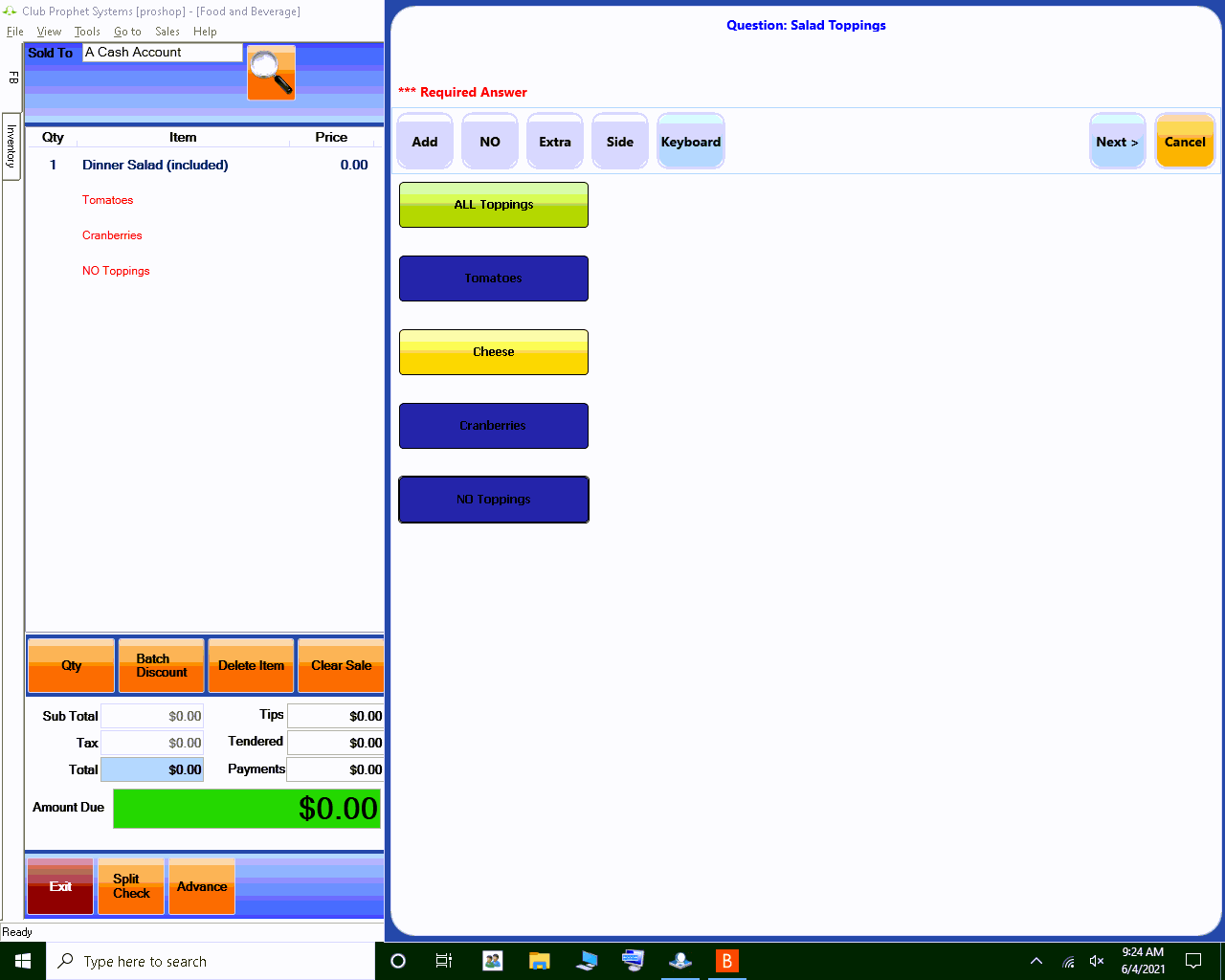
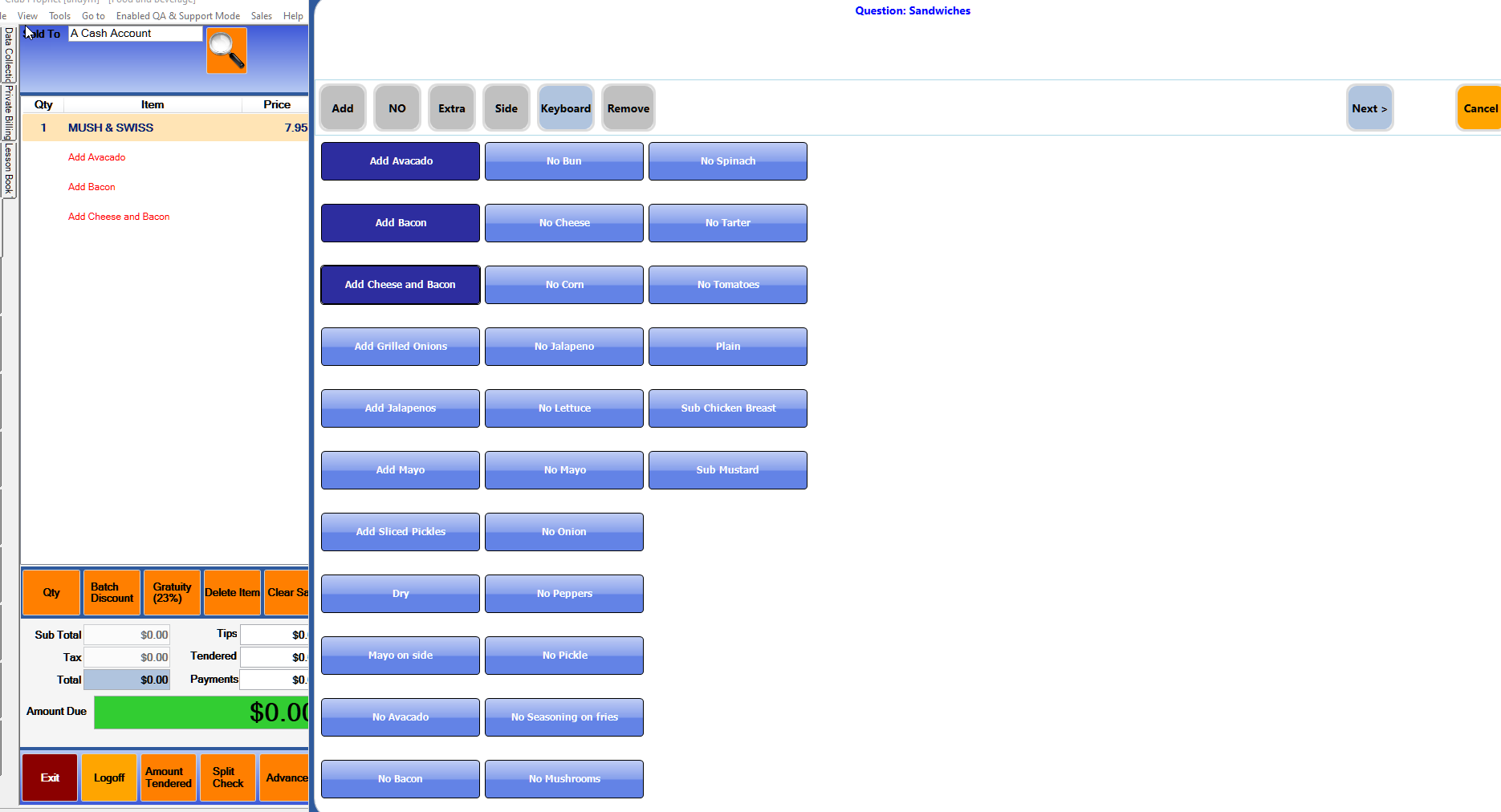
When adding a modifier to a modifier list in Inventory, you can set a background color in the 3.100 release that the modifier button will change after it is selected.
This addition will make it easier for your staff to track which modifiers a customer wants when the customer needs to select multiple choices.
Shout out to Trace Ross
To change a background and font color to a modifier in Inventory
-
Go to Inventory.
-
Select the Modifier Setup tab near the top and far-right. The Item Modifier screen displays.
-
Search for and select the item modifier from the list to the left. The modifier details display to the right.
-
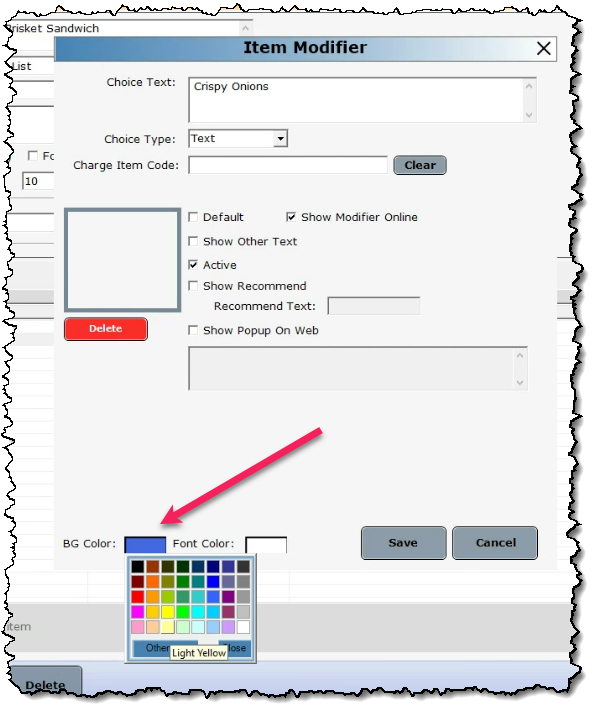
In the Modifier Choices section below, double-click the choice to change. The Item Modifier pop-up displays.
-
Near the bottom, select the BG Color. The color palette displays.
-
Select the desired color.
-
Repeat steps 5 and 6 to change the Font color, keeping in mind that you should use extreme contrast colors for the text to be readable. Tip: For help in choosing high contrast colors, click here>>
-
Click Save. The pop-up closes.
-
Click Save again at the bottom middle of the Item Modifier screen.
The next time you use the item modifier, the colors will be that which you selected.
Examples